.
.instax printers
Print pictures on optional Fujifilm instax Link printers, Fujifilm instax Evo series, and Fujifilm instax LiPlay series.
Visit the following website about compatible printers.
Establishing a Connection
Select Bluetooth/SMARTPHONE SETTING in the network/USB setting menu to pair the camera with the printer in PAIRING REGISTRATION. Once paired, the camera and printers will be automatically connected via Bluetooth.
Once paired, the printer will automatically connect to the camera every time it is started up.
Disabling Bluetooth when the camera is not connected to the printer reduces the camera’s power consumption.
If the connection to the printer is unstable, delete the pairing with the printer for Bluetooth/SMARTPHONE SETTING > Bluetooth DEVICE LIST and pair with the printer again.
Printing Pictures
-
Turn the printer on.
-
Select instax PRINTER PRINT in the playback menu.
-
Use the focus stick (focus lever) to display the picture you want to print, then press MENU/OK.
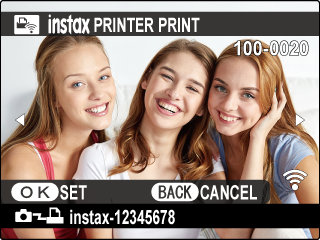
Pictures taken with other cameras cannot be printed.
The area printed is smaller than the area visible in the LCD monitor.
The displays may vary depending on the printer connected.
-
The cropping screen is displayed.
Adjust the cropping position and press MENU/OK.

Cropping is not available if the aspect ratio of the film to be printed and the image are the same.
-
The picture will be sent to the printer and printing will start.
instax Image Quality Mode
In addition to the existing “instax-Natural Mode”, the instax IMAGE QUALITY MODE offers an “instax-Rich Mode” featuring vibrant colors.
These options are only available when using a compatible printer.